
👓 Using the Glasses HUD
Navigate events and approve or reject song requests from the Even G2 display while you DJ.
What is the Glasses HUD?
Open Song Request Queue from Even Hub in the Even Realities app on your phone. After you sign in with your PlayThis.Live account, your events and song requests appear on the G2 display—approve or reject without looking at your phone or laptop.
Don't have the phone app yet? iOS App Store · Google Play · Full setup guide
How the HUD works
Three screens: pick an event, pick a request, then approve or reject.
Controls: single tap to select or highlight; double-tap to go back one level (or confirm on the approve/reject screen). On the very first screen, double-tap exits the app.
Quick menu: press and hold on any list screen to open a context menu with Refresh, Back, and Exit. It also shows a legend of the glyphs used on screen. Hold again or double-tap to close it.
1. Event list
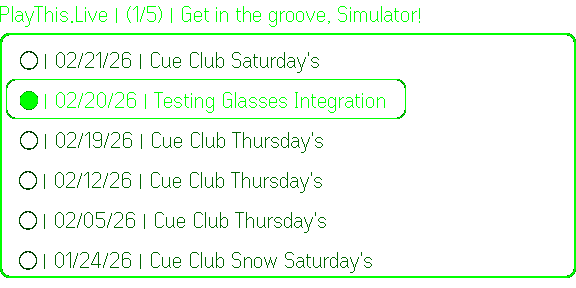
Your events show up with a small icon: ○ upcoming, ● live, □ ended.
Tap an event to open its song requests. Use ← Previous and Next ↓ for multiple pages.
2. Request list
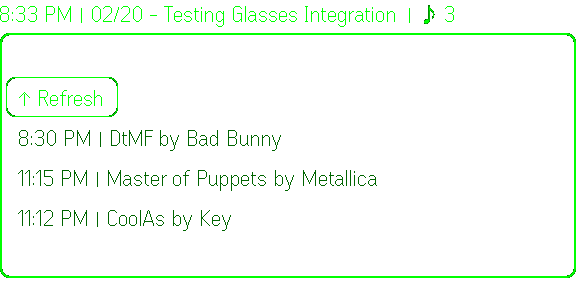
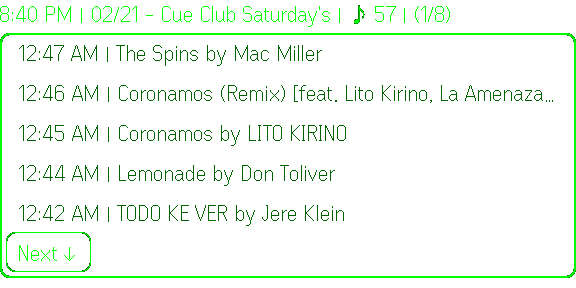
Song requests for the selected event. Tap a request to approve or reject it.
The list updates automatically so new requests appear without refreshing. On Pro, rows can also show BPM and either musical key or Camelot (not both)— the same preference as Booth pills under DJ Admin → Workspace → Song Search. Free accounts still approve and reject as usual without those fields.
3. Approve or reject
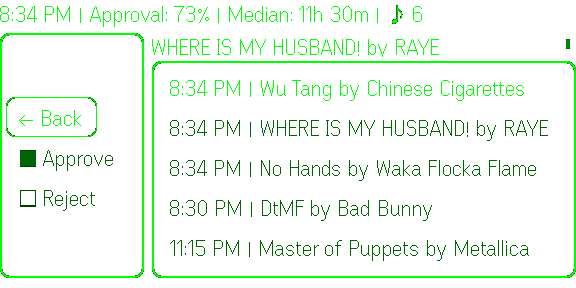
Options: Approve, Reject, and (on Pro) Already played. Tap once to highlight, double-tap to confirm. There is no separate Back row—double-tap anywhere on this screen to go back to the request list.
If the event has ended, you'll see "Event ended (view only)" and can double-tap to return to the request list.